QLESS Tempo helps York College manage student and visitor service requests by providing a more organized way to connect with participating departments, join a service queue, and receive updates while waiting.
This page provides resources to help you get started with QLESS Tempo, including training videos, instructions for joining a queue, helpful links, and a directory of York College departments currently using QLESS.
Use the resources below to learn how QLESS works, find the department or service you need, and understand what to expect when using the system.
How it works
Join A Line
Join the line from anywhere.
Move Freely
Wait wherever you want.
Get Updates
Recieve wait time updated.
Be Served
Get notified when it's your turn.
How to Join the QLESS Virtual Line from a Tempo Kiosk
You do not have to stand in a physical line. Once you have joined the virtual line, you can move freely and return when QLESS lets you know that your turn is approaching.
How to join a virtual line
Go to any QLESS Tempo kiosk or QLESS Tempo QR code located in a participating York College service area.
Tap “Sign In” on the kiosk screen to begin.
Select the department or service you need assistance from.
Choose the reason for your visit from the available service options.
Enter your information as requested, such as your name and mobile phone number.
Review your information and confirm your request.
Join the virtual line. You are now placed in the queue for the selected service.
QLESS Tempo Staff Login and App Basics
Important: Keep your QLESS status accurate. Your availability helps the system properly manage wait times, visitor flow, and department service activity.
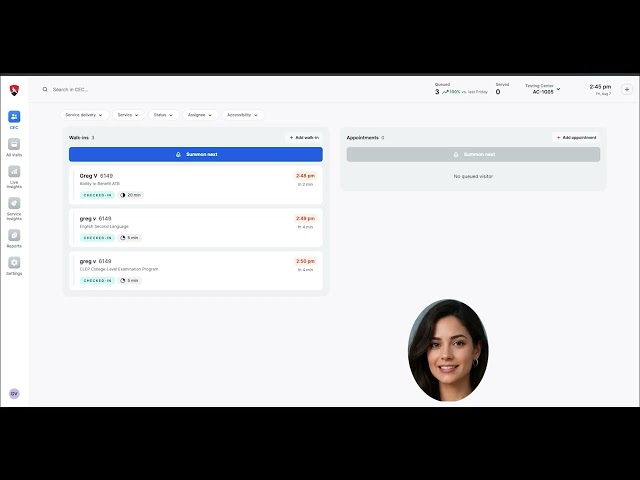
Open the QLESS Tempo staff application using the link or shortcut provided for your department.
Sign in with your CUNYfirst account using your authorized username and password.
Check that your department is highlighted at the top right. (Contact IT if you do not see this)
Confirm your availability using the "Station" drop down at top right under department so QLESS knows you are ready to assist visitors.
View the waiting list to see visitors currently waiting for service.
Summon the next visitor when you are ready to assist someone.
Start service when the visitor arrives and use the available options to update their status as needed.
Complete the service by click on "Done" when the interaction is finished so the visitor is removed from the active queue.
Continue to the next visitor or you can open another case to transfer if the visitor requires another service from a different department by using the drop down arrow by "Done" or just repeat the process throughout your service period.
Update your availability or sign out when you are leaving your service area, going on break, or ending your shift.
QLESS Tempo Kiosk Department Listings
Admissions
Collaborative Learning Center
Financial Aid Student Support Services
Learning Center
Male Initiative Program
Office of Student Development Student Affairs
Office of the Bursar
Office of the Registrar
Technology Support Services
Testing Center
Welcome Center
Staff Training Video
QLESS Tempo Maintenance Information
QLESS Tempo is a cloud base system administered locally and maintained globally by the vendor. Maintenance is always announcemend and generally occurs during over night. Technical support for the system is provided on campus by IT
QLESS helps you save time and stay connected. Join the line, get updates, and we'll let you know when it's your turn